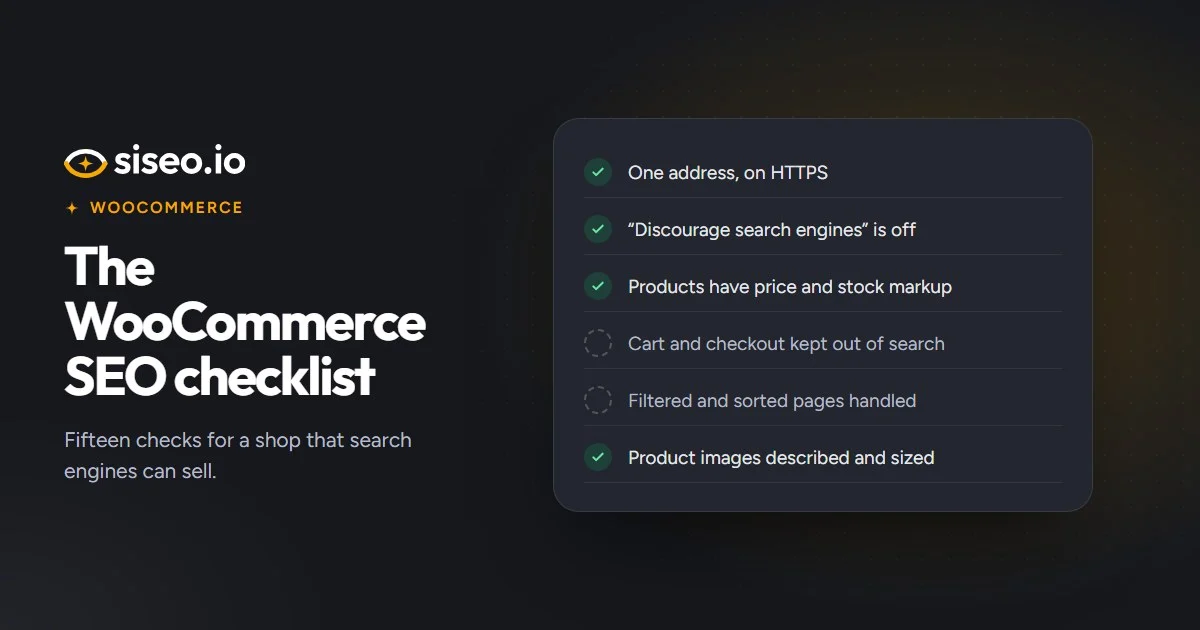
WooCommerce gets a lot right by itself: product pages carry structured data (code that describes each product to search engines), and WordPress writes a sitemap. Many of the problems on this list come from a setting left over from the build, two plugins doing one job, or a theme replacing something WooCommerce already does. The checks are grouped by where they live, and the first four are the foundations.
Can Google find and index the shop?
1. Untick “Discourage search engines”
Settings → Reading has a box called “Discourage search engines from indexing this site”: useful while a shop is being built, harmful if it stays ticked after launch. It adds a noindex instruction to every page, asking Google to leave the whole site out of search, and switches off WordPress’s built-in sitemap. Untick it, save, and clear your caching plugin and any CDN (content delivery network) cache. If you use Yoast SEO or Rank Math, check that the homepage is also set to “index” in the plugin panel.
2. Give the shop one address
In Settings → General, set the WordPress Address and Site Address to your final address, https and with or without www; a mismatch can cause redirect loops. WordPress then redirects the other www version itself, as long as your host sends both names to the same site, and your host’s force-HTTPS option or the Really Simple Security plugin can redirect http to https. After a move to https, update old http:// links in your content with a plugin such as Better Search Replace, after a backup. Our guide to one site, one address has the details.
3. Make sure robots.txt lets Google in
WordPress serves a virtual robots.txt, which you can edit in Yoast SEO (Yoast SEO → Tools → File editor) or Rank Math (Rank Math → General Settings → Edit robots.txt). A real robots.txt file in the site’s root folder overrides both. Look for a leftover Disallow: /, and for old rules blocking /wp-includes/ or /wp-content/plugins/, which hold CSS and JavaScript Google needs to render your pages. Keep Disallow: /wp-admin/ and Allow: /wp-admin/admin-ajax.php.
4. Use one sitemap, and submit it
WordPress’s built-in sitemap lives at /wp-sitemap.xml. Yoast SEO and Rank Math replace it with /sitemap_index.xml (switch it on in Yoast SEO → Settings → Site features → XML sitemaps, or with Rank Math’s Sitemap module) and add it to the robots.txt WordPress generates. Submit the one your active plugin produces in Search Console, not one left over from a previous plugin. If it shows a blank page or an XML error, re-save Settings → Permalinks and exclude sitemap addresses from your caching plugin.
Product pages
5. Check that product markup is there and complete
WooCommerce adds Product structured data to standard product pages by itself, covering the price, currency, image and availability. It builds the markup while rendering the standard product summary, so when the markup is missing, a page-builder or theme template that replaces that summary is the usual reason. Products with no price, such as “price on request” or catalogue-mode items, get no offer in the markup and can’t earn product rich results, the price, stock and star details shown under a listing. Test a few products in Google’s Rich Results Test. Shipping and returns can be added with a schema or SEO plugin that supports them, or set once in Organization markup or Google Merchant Center.
6. Let one tool write each tag
A reviews plugin, a schema plugin and your theme can each add a Product block of their own. Turn off product schema in the extras, so each page describes one complete product. SEO plugins clash the same way: running Yoast SEO, Rank Math or All in One SEO together, or alongside a theme with its own SEO options, often duplicates titles, descriptions and canonical tags. Keep one SEO plugin and turn off the theme’s SEO features.
7. Sell variations, not near-copies
Sell one item in several sizes or colours as one variable product with options, not as several products with almost the same text. Google tends to show one of a group of near-identical pages and filter out the rest. Give each product its own title and description; in Yoast SEO or Rank Math, the title template should include the product’s own title.
8. Give images alt text and sensible sizes
Product images use the alt text set in the Media Library, so set it there: a few words on what the photo shows, such as “Blue linen summer dress, front view”. Screen readers read it aloud, and it helps your photos appear in Google Images. If a theme or builder asks for the “full” size and serves the original upload, pick a smaller size. An image optimisation plugin such as ShortPixel, Imagify, EWWW Image Optimizer or Smush can compress existing images in bulk and convert them to WebP or AVIF.
9. Retire old products properly
When a product is gone for good, send its address to its replacement or the closest relevant page with a permanent (301) redirect, using the Redirection plugin or the redirect manager in Rank Math or Yoast SEO Premium. If nothing replaces it, let the address return 404 or 410 and remove your links to it. Don’t send every old product to the homepage: Google treats that as a soft 404, an error page in disguise. A product that is only out of stock should say so in its markup, with availability set to OutOfStock.
Pages to keep out of search
10. Keep cart, checkout and My Account out of Google
Cart, checkout and account pages have no search value. To keep them out of Google, give the pages themselves a noindex tag, in the page’s Advanced section in Yoast SEO or its Advanced tab in Rank Math, and check the page source to confirm it. Don’t nofollow the links that point to them, and don’t also block them in robots.txt: robots.txt only stops crawling, and Google never sees a noindex on a page it can’t crawl.
11. Keep filter and sort addresses under control
Sorting and filter links, such as ?orderby=, ?filter_ and ?min_price=, create a new address for every combination. That is usually fine on a small shop. On a large one, thousands of combinations can soak up Google’s crawling and slow down how quickly new products are found. Keep crawlers out of the ones you don’t need in search, leaving product and category pages open:
User-agent: *
Disallow: /*?*orderby=
Disallow: /*?*filter_
Disallow: /*?*min_price=
Adapt the names to your own filters, leave out any filtered page you want in search, and never block page numbers you want crawled.
Speed
12. Cache pages, but never the cart
Turn on page caching with your host’s cache or a plugin such as WP Rocket or LiteSpeed Cache (which needs a LiteSpeed server). Never cache the cart, checkout or My Account pages; WooCommerce-aware caches skip them already. Also check your PHP version in Tools → Site Health → Info, and ask your host to upgrade it if it is out of date.
13. Trim scripts, and load the main image first
Deactivate plugins you don’t need, especially sliders, pop-ups, social feeds and page-builder add-ons that load scripts on every page, and check that cart and product scripts load only on the pages that need them. The delay-JavaScript option in WP Rocket or LiteSpeed Cache can hold third-party scripts until the visitor interacts; test menus, forms and checkout afterwards. Make sure the main image on product and category pages isn’t lazy-loaded (held back until it scrolls into view): WordPress loads the first large image straight away, but sliders, page builders and optimisation plugins can override that.
Google says Core Web Vitals, its measures of loading, responsiveness and layout stability, are used by its ranking systems, but relevance comes first, so treat speed mainly as a question of visitors and sales (more in our Core Web Vitals guide). The full siseo report measures speed for each type of page, so product pages, category pages and the rest are shown separately.
AI search and trust
14. Let AI search crawlers in
Search crawlers such as OAI-SearchBot, Claude-SearchBot and PerplexityBot decide whether your pages can be found and quoted in ChatGPT search, Claude and Perplexity. Blocking training crawlers like GPTBot or ClaudeBot is a legitimate choice with no search cost; blocking the search crawlers keeps you out of those answers, and it is often an accident. Check robots.txt, your security plugin (in Wordfence, the Blocking tab and the rate-limiting rules) and the list in any “block AI” plugin. If Cloudflare sits in front of the shop and you want to refuse AI training, choose Disallow AI Training rather than Block: since 15 September 2026, Block also stops Googlebot, Bingbot and Applebot. More in our guide to AI crawlers.
15. Link your trust pages
Before buying, people look for who runs a shop, how to reach it, and how their data and money will be handled. Publish an About page, a Contact page, a privacy policy, your terms of sale and a returns and refunds policy, plus delivery details, and link them all from the footer. WordPress can create a starter privacy policy in Settings → Privacy for you to edit. Privacy and consumer laws in many places require some of these pages, so have the wording checked.
In short: get the first four right before anything else: no noindex, one https address, a robots.txt that lets Google in, and one sitemap. Then make sure every product page carries one complete set of product markup.