Every site can have a robots.txt file: a short, plain text file at yoursite.com/robots.txt. It tells crawlers, the programs search engines and other services use to read the web, which parts of your site they may visit. Most sites need only a few lines, but one wrong line can keep Google out of the whole site.
What robots.txt is for
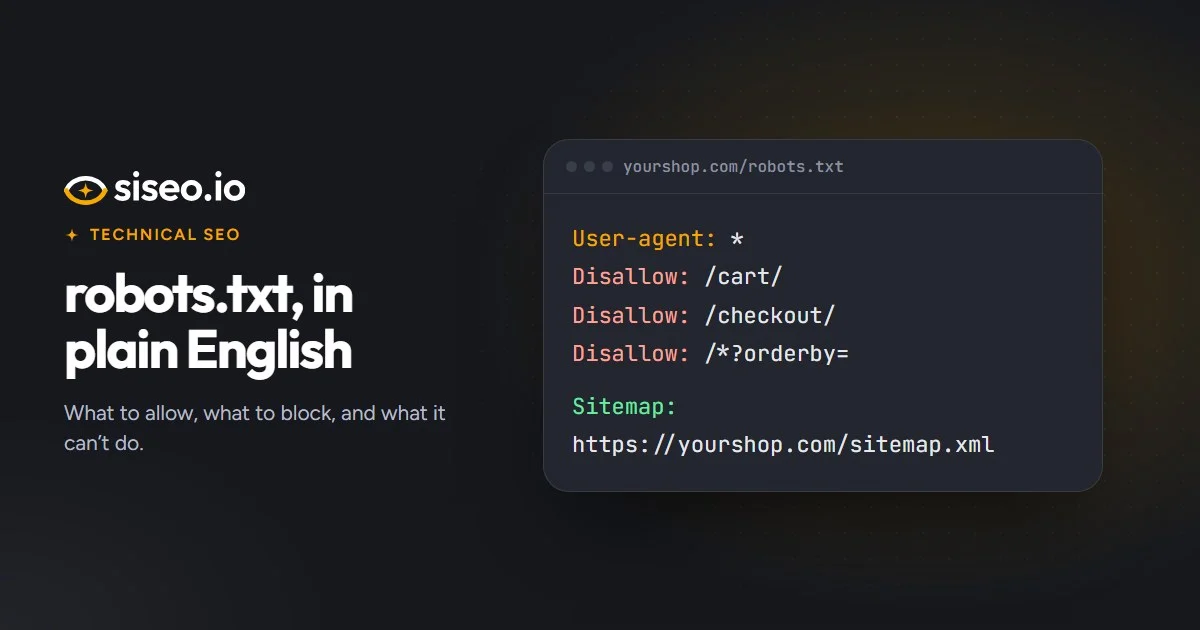
The file is made of groups. Each group starts with one or more User-agent lines naming the crawlers it applies to, where * means every crawler. Then come Disallow lines for paths those crawlers should stay out of, and Allow lines for any exceptions. It has three sensible uses:
- Keeping crawlers out of pages with no search value, such as internal search results and cart, checkout or account pages.
- On large shops, keeping crawlers out of the many sort and filter versions of product lists, which can soak up Google’s crawling. Google suggests blocking the versions you don’t need in search; on a small site this rarely matters.
- Pointing every crawler to your sitemap.
A few rules decide which lines apply. Google follows the one group that matches it most specifically: a Googlebot group if there is one, otherwise *. Within that group, the longest matching rule wins, and Allow beats Disallow on a tie. A crawler with a group of its own ignores the * group completely, so repeat there any rule you still want it to follow. Each host also needs its own file: https://www.example.com/robots.txt covers only that host. Google sets out the details in how Google interprets robots.txt.
What robots.txt can’t do
robots.txt controls crawling, not indexing. Crawling is a search engine fetching and reading a page; indexing is storing it so it can appear in results. A page blocked in robots.txt can still show up in Google when other sites link to it, just without a description, because Google couldn’t read it.
It also gets in the way of noindex, the tag that does keep pages out of search. Google only sees a noindex on pages it is allowed to crawl, so a robots.txt block hides the very instruction meant to keep the page out. To keep a page out of Google, use noindex and let the page be crawled, as Google’s guide to blocking indexing with noindex explains.
Finally, robots.txt is a request, not a lock. Anyone can read the file, and only crawlers that choose to follow it do. Keep private pages behind a login.
In short: robots.txt decides where crawlers may go; noindex decides what appears in search. Use each for its own job, and don’t block a page you have set to noindex.
The mistakes that cause real trouble
siseo’s free scan reads your robots.txt the way Google does, and tests your homepage and its CSS and JavaScript files against it. Here is what it looks for, roughly from most to least serious.
A rule that blocks the whole site
Disallow: / under User-agent: * or User-agent: Googlebot tells Google to stay out of everything, so it can’t read your pages or see your changes. The line is usually left over from a staging or pre-launch version of the site, and it is serious enough to cap the overall score (see how to read your SEO score).
Delete the line, keeping any rules that deliberately cover private areas, then request a recrawl in the robots.txt report in Google Search Console (under Settings). Google can cache the file for up to 24 hours, so without that request a fix may take a day to register. On WordPress, “Discourage search engines” has added a noindex tag rather than a robots.txt rule since version 5.3, so a block there comes from a file or a plugin.
A file that can’t be reached
This one is easy to miss, because the rest of the site can look perfectly normal. Google fetches robots.txt before it crawls anything else. When the file answers with a server error or “too many requests”, or doesn’t answer at all, Google stops crawling your whole site for the first 12 hours, then works from the last copy it saw for up to 30 days while it keeps retrying. New pages and changes go unnoticed meanwhile, and if the failures continue, Google can stop crawling the site altogether.
A missing file is safe; a failing one is not. Typical causes are a firewall or bot-protection service that challenges or rate-limits automated visitors, a broken rewrite rule, a crashing plugin or an overloaded server. Serve robots.txt as a plain static file where you can, and check what Google last received in Search Console’s robots.txt report.
Blocked CSS and JavaScript
Google renders pages much as a browser does, loading their CSS and JavaScript. If robots.txt blocks those files, Google can see a broken or incomplete page: text added by scripts may be missing and the layout misread. Old advice told WordPress sites to block /wp-includes/ or /wp-content/plugins/, which hold files your pages need. Remove those lines and keep Disallow: /wp-admin/ with Allow: /wp-admin/admin-ajax.php. Blocking a script that doesn’t change what the page shows, such as some analytics, does no harm.
Lines that don’t do what you think
Search engines skip any line they don’t recognise, so a misspelled rule silently does nothing. Look for typos such as “Dissallow” or “User agent”, a missing colon, and Allow or Disallow lines above the first User-agent line, which belong to no group. Google forgives a few common typos; other search engines and AI crawlers may not. Size matters too: Google reads only the first 500 KB and ignores the rest. A file that large usually lists pages one by one, where a pattern such as Disallow: /tag/ would do.
A web page where the file should be
Some sites answer every unknown address with a normal page, /robots.txt included. Crawlers find no rules in it and treat it as missing. Fix the server rule so robots.txt is served as plain text and addresses that don’t exist return a 404.
No file at all
This isn’t an error: without robots.txt, search engines simply crawl everything. But the file is the standard place to list your sitemap and to keep crawlers out of cart, login and search pages, so it is worth adding one.
The Sitemap line
A Sitemap: line gives the full address of your sitemap, the file that lists the pages you want in search. It doesn’t belong to any User-agent group, it can go anywhere in the file (the end is usual), and you can list several sitemaps or one sitemap index. Bing and many other crawlers look for this line, and Google retired its sitemap ping in 2023, so the line and a submission in Search Console are now the ways to announce a sitemap.
A safe robots.txt to start from
A simple file like this is a good start:
User-agent: *
Disallow: /cart/
Disallow: /checkout/

Sitemap: https://www.example.com/sitemap.xml
Change the Disallow lines to match your own private areas, or keep a single empty Disallow: line to allow everything, and use your real sitemap address. Never block pages you want in Google, or the CSS and JavaScript they use. If you want separate rules for AI crawlers, read AI crawlers explained first: a group for a named crawler replaces the * rules for it.
Where to edit it
- WordPress: Yoast SEO (Tools → File editor) or Rank Math (General Settings → Edit robots.txt). A real robots.txt file in the site’s root folder overrides both.
- Shopify: the robots.txt.liquid template, under Online Store → Themes → Edit code.
- Wix: the Robots.txt Editor in the SEO section of your dashboard.
- Webflow: the robots.txt field in Site settings → SEO.
- Squarespace: the file can’t be edited; its crawler options are under Settings → Crawlers.
After any change, check in a browser that the file loads as plain text, then look at Search Console’s robots.txt report. Its URL Inspection tool shows whether a particular page is blocked.